

How to Install a WordPress Plugin: A Complete Beginner Guide
WordPress is powerful because it can be customized endlessly, and plugins are the reason why. If you are new to the platform, one of the first things you need to learn is how to install a WordPress plugin correctly.
Plugins allow you to add new features to your site without touching code. Whether you want better SEO, contact forms, security tools, or online payment gateways, there is a plugin for almost everything.
However, for beginners, WordPress plugin installation can feel confusing at first due to multiple options and unfamiliar terms.
This guide breaks everything down clearly. By the end, you will understand how to add plugins to WordPress using three reliable methods, when to use each one, and how to avoid common mistakes.
What You Should Know Before Installing Plugins
Before learning how to install a WordPress plugin, it’s important to confirm which version of WordPress you are using.
If your site is hosted on WordPress.com, plugin installation is restricted unless you are on a Business plan or higher. This is why many users do not see the Plugins menu in their dashboard.
If you are using WordPress.org (self-hosted), you can install WordPress plugins freely as soon as your site is set up. Most tutorials, including this one, assume you are using WordPress.org.
Once that’s confirmed, you are ready to begin.
Different Ways to Install a WordPress Plugin
There is more than one way to install plugins in WordPress. Each method serves a specific purpose depending on where the plugin comes from and how your hosting is configured.
In this guide, you’ll learn:
- How to install a plugin using the WordPress plugin directory
- How to upload a plugin from your computer
- How to manually install a WordPress plugin using FTP
Let’s walk through each option step by step.
Method 1: Install a Plugin Using the WordPress Plugin Directory
This is the easiest method and the best place for beginners to start when learning how to install a WordPress plugin.
Step 1: Open the Plugin Installation Screen
Log in to your WordPress dashboard and go to:
Plugins → Add New
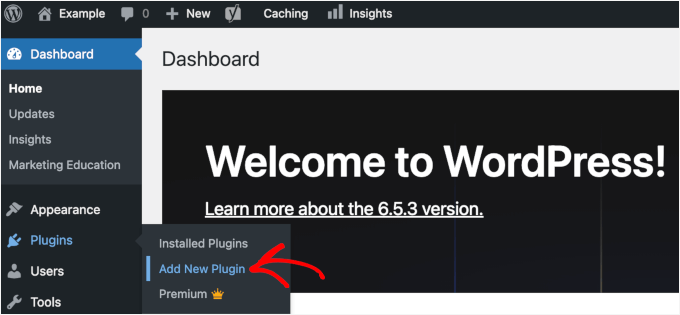
This page connects your site to the official WordPress plugin directory, which contains thousands of free plugins.
Step 2: Search for a Plugin
Use the search bar to type the name of a plugin or describe what you want your site to do. For example, you might search for a form builder, SEO tool, or LMS WordPress plugin for elearning website.
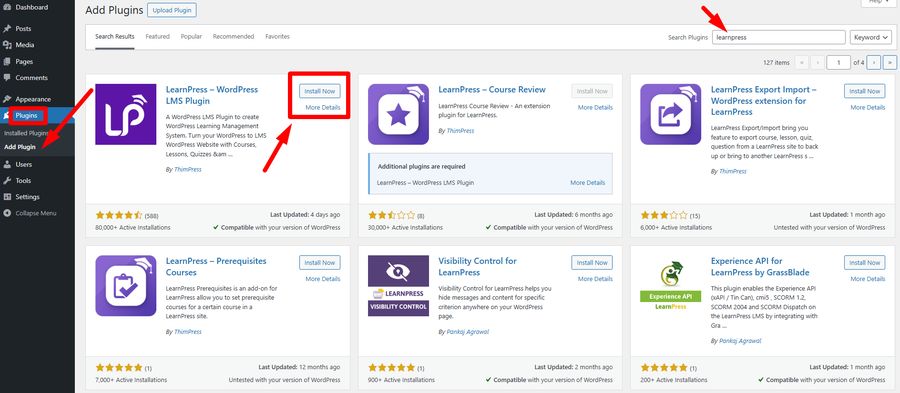
WordPress will show you a list of relevant results along with ratings, descriptions, and update history.
Step 3: Install the Plugin
When you find the plugin you want, click Install Now.
WordPress will automatically download and place the plugin files on your site.
Step 4: Activate the Plugin
After installation, click Activate.
This step is essential — a plugin does nothing until it is activated.
At this point, the WordPress plugin installation is complete. Most plugins will now add a new menu or settings page where you can configure them.
Method 2: Install a Plugin by Uploading It in WordPress
Not all plugins are available in the WordPress directory. Premium plugins and custom plugins must be uploaded manually.
This method is ideal if you purchased a plugin or received it from a developer.
Step 1: Download the Plugin File
Download the plugin to your computer. It should be a ZIP file.
Do not unzip it before uploading.
Step 2: Open the Upload Option
In your WordPress dashboard, go to:
Plugins → Add New → Upload Plugin
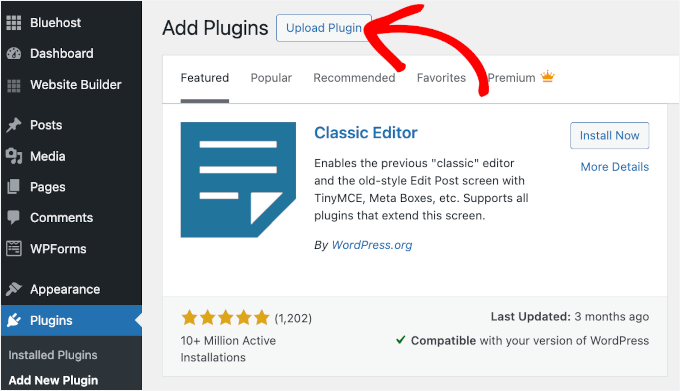
You will see an option to upload a file.
Step 3: Upload and Install
Click Choose File, select the plugin ZIP file, then click Install Now.
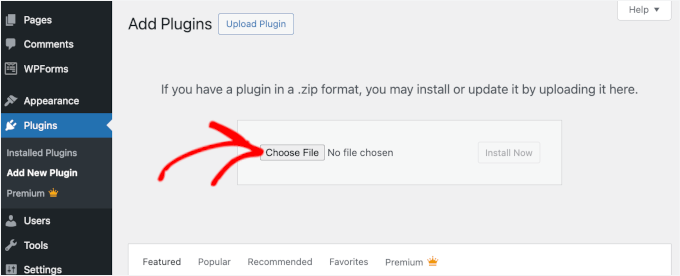
WordPress will extract the files and install the plugin automatically.
Step 4: Activate the Plugin
Once installation is complete, click Activate Plugin.
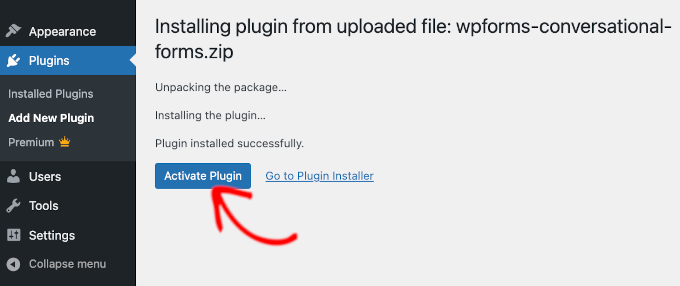
This is one of the most common ways beginners install WordPress plugins that are not listed in the official directory.
Method 3: Manually Install a WordPress Plugin Using FTP
In some situations, your hosting provider may block plugin installation through the dashboard. When that happens, you’ll need to manually install a WordPress plugin using FTP.
This method requires a few extra steps but works reliably.
Step 1: Prepare the Plugin Files
Download the plugin ZIP file and extract it on your computer.
You should now have a folder with the plugin name.
Step 2: Connect to Your Website Using FTP
Use an FTP client such as FileZilla and log in using the credentials provided by your hosting company.
Once connected, navigate to:
/wp-content/plugins/
Step 3: Upload the Plugin Folder
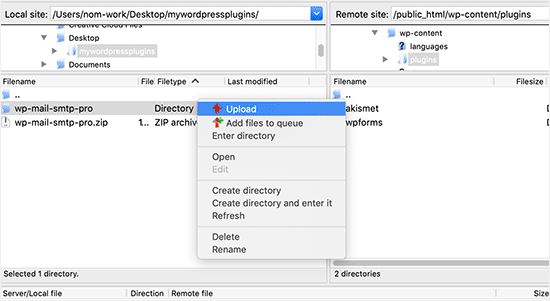
Upload the extracted plugin folder directly into the plugins directory.
Wait until all files finish uploading before proceeding.
Step 4: Activate the Plugin in WordPress
Go back to your WordPress dashboard and open:
Plugins → Installed Plugins
You will see the plugin listed there. Click Activate to enable it.
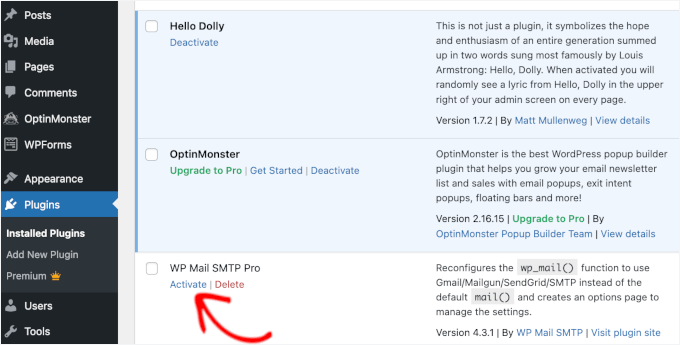
You have now successfully completed a manual WordPress plugin installation.
FAQs: Common Questions About WordPress Plugin Installation
How do I choose the right plugin?
With thousands of plugins available, it’s important to choose carefully. Look for plugins that are:
– Frequently updated
– Compatible with your WordPress version
– Well-reviewed
– Actively supported
This reduces security and performance risks.
What is the difference between installed and active plugins?
An installed plugin exists on your server but does not affect your site.
An active plugin is currently running and providing functionality.
Always remember: installing alone is not enough — activation is required.
Should I remove unused plugins?
Yes. Even inactive plugins can create security risks if left installed. If you are not using a plugin, it’s best to delete it completely.
How many plugins can I install in WordPress?
There is no strict limit. Performance depends on plugin quality, not quantity. A few poorly coded plugins can slow a site more than many well-built ones.
How do I uninstall a plugin?
To uninstall a plugin:
Go to Plugins → Installed Plugins
Deactivate the plugin
Click Delete
This removes it safely from your site.
Is it dangerous to use outdated plugins?
Yes. Outdated plugins may contain security vulnerabilities or cause compatibility issues. Always keep plugins updated to protect your website.
Final Thoughts
Learning how to install a WordPress plugin is a foundational skill for anyone using WordPress. Whether you install plugins through the dashboard, upload ZIP files, or manually install a WordPress plugin using FTP, each method gives you flexibility and control over your site.
Once you understand how to add plugins to WordPress, you unlock the true power of the platform. You can enhance functionality, improve security, optimize SEO, and build advanced features without writing code.
By following this guide, beginners can handle WordPress plugin installation confidently and safely while building a stronger, more capable website.
Read more: How to Add a Weather Widget to WordPress for Travel & Hotel Websites
You may also like

How to Add a Weather Widget to WordPress for Travel & Hotel Websites
Posted on January 5, 2026If you manage a WordPress website for a bed & breakfast, a local tour operator, or an outdoor event venue, your visitors all share one specific anxiety: “What is the weather going to be like?”
It is a critical factor in travel planning. If a user has to leave your site


WooCommerce vs Shopify: The Best Choice?
Posted on September 23, 2025
Choosing the right eCommerce platform is a critical decision for any online business. The two most dominant players in this space are Shopify and WooCommerce. While both are powerful tools for building an online store, they cater to very different needs. The WooCommerce vs Shopify debate often centers on ease of use versus flexibility.